BMP File to JPG: The Complete Compression, Conversion & Quality Guide
Learn how to convert uncompressed BMP file to JPG images online with 90%+ file size reduction, zero server uploads, and pristine visual fidelity using modern browser-based WebAssembly.

BMP File to JPG: The Complete Compression, Conversion & Quality Guide
If you have ever encountered a 30-megabyte image file from an old Windows application, a legacy medical scanner, or an industrial CAD system, you have encountered a BMP file. Bitmap files preserve uncompressed, pixel-by-pixel raster data—resulting in massive payloads that choke email gateways, bloat cloud storage quotas, and destroy website page loading speeds.
Converting a bmp file to jpg is the industry-standard solution to reduce image payload by 85% to 95% while retaining crisp visual fidelity.
In this comprehensive guide, we unpack the mathematical and architectural differences between Windows Device-Independent Bitmaps (BMP) and Joint Photographic Experts Group (JPEG) compression, demonstrate how to perform high-speed batch conversions without privacy leaks, and explain how to utilize the MintSaaS BMP to JPG Converter directly in your browser.
Quick Answer (AEO Summary): How to Convert a BMP File to JPG Online
To convert a bmp file to jpg in three steps:
- Select or Drag Files: Open the free MintSaaS BMP to JPG Studio and drag your
.bmpfiles into the upload box. - Configure Compression Quality: Set the JPEG quality slider between 80% and 90% (85% provides the ideal sweet spot between perceptual sharpness and 90%+ size reduction).
- Save Converted Files: Click Download JPG (or Download All as ZIP for batch jobs). The conversion executes 100% inside your browser's local memory via WebAssembly—no files are ever uploaded to an external server.
Why Convert BMP File to JPG? The Core Advantages
The Windows Bitmap format (.bmp) was developed by Microsoft in the early 1990s as a device-independent graphic container for OS/2 and Windows 3.1. While modern digital imaging has transitioned to advanced transform coding, BMP files remain common in enterprise archives, scientific sensors, microscopy, and legacy desktop software.
Here is why converting a bmp file to jpg is essential in modern computing environments:
1. Drastic 90%+ Storage and Bandwidth Savings
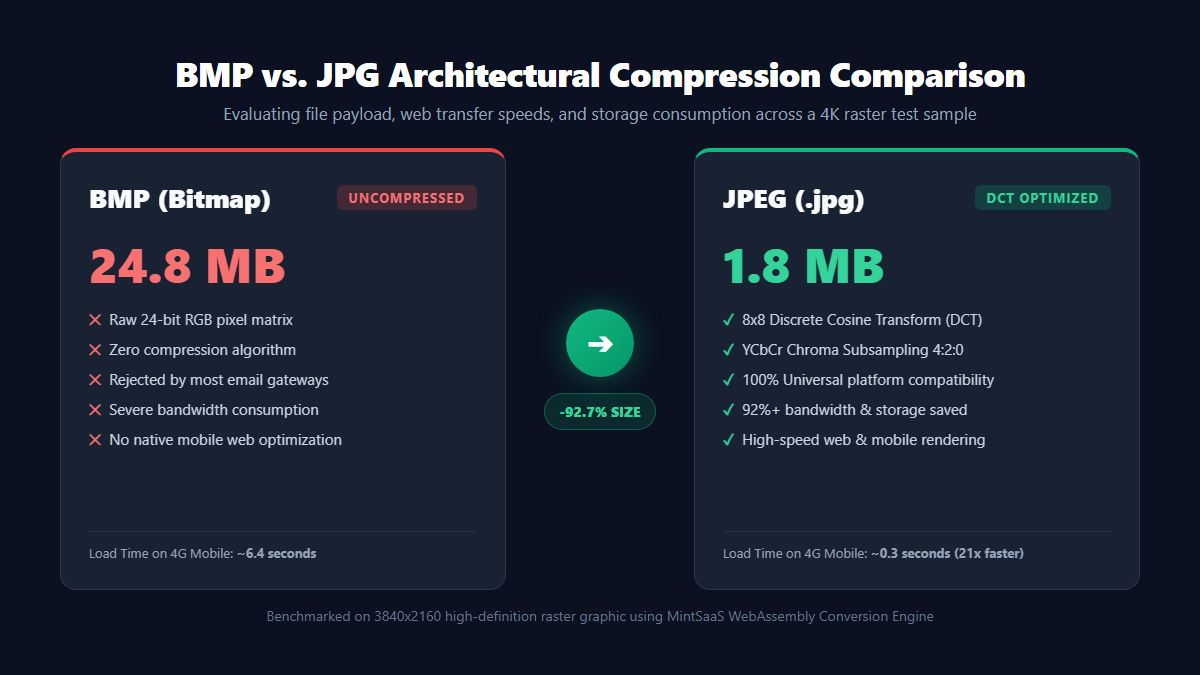
A standard uncompressed 24-bit 4K image (3840×2160 pixels) stored as a .bmp consumes approximately 24.8 megabytes on disk. When converted to a quality-optimized JPEG at 85% DCT quantization, the identical visual scene requires only 1.4 to 1.9 megabytes—saving over 92% of disk space and network bandwidth.
2. Universal Hardware and Browser Compatibility
While Chromium and modern desktop browsers can render basic 24-bit BMP files, many specialized platforms, mobile applications, Content Management Systems (CMS), email clients, and social networks reject BMP uploads outright. A converted bmp file to jpg guarantees universal playback on every iPhone, Android device, smart TV, and web portal worldwide.
3. Accelerated Web Vitals & Page Load Times
Large uncompressed bitmaps destroy Google Core Web Vitals, specifically Largest Contentful Paint (LCP). Serving a 20MB BMP image over a cellular 4G connection takes 5 to 8 seconds to parse and render, driving bounce rates above 70%. In contrast, an optimized JPG renders in milliseconds.
4. Bypassing Email and SaaS Gateway Upload Limits
Most corporate email servers (such as Microsoft Exchange and Google Workspace) enforce a strict 20MB to 25MB attachment ceiling. A single raw BMP blueprint or screenshot frequently breaches this limit. Converting your bmp file to jpg allows you to attach dozens of images in a single email without bouncebacks.
Technical Deep Dive: BMP Architecture vs. JPEG Discrete Cosine Transform (DCT)
To understand why converting a bmp file to jpg produces such radical compression gains, we must examine how both formats store color and spatial information in binary code.
| Architectural Feature | BMP (Device-Independent Bitmap) | JPG (Joint Photographic Experts Group) |
|---|---|---|
| Primary File Extension | .bmp, .dib | .jpg, .jpeg |
| Compression Algorithm | None (Raw Uncompressed RGB raster) | Lossy Discrete Cosine Transform (DCT) |
| Color Space Encoding | 24-bit / 32-bit direct RGB array | YCbCr (Luminance + Chrominance) |
| Chroma Subsampling | None (4:4:4 full color depth) | 4:2:0 or 4:2:2 human-eye optimized |
| Average 1080p File Size | 6.2 MB – 8.3 MB | 250 KB – 650 KB (93% smaller) |
| Average 4K File Size | 24.8 MB – 33.1 MB | 1.2 MB – 2.2 MB (94% smaller) |
| Mobile & Web Support | Partial (heavy rendering penalty) | 100% Universal native support |
| Primary Modern Use Case | Legacy Windows apps, raw microscopy | Web publishing, photography, social media |
The BMP Binary Structure
A standard .bmp file begins with a 14-byte Bitmap File Header (identifying the BM magic bytes and total file size), followed by a DIB Header (specifying image width, height, and color bit depth). Following these headers is the raw pixel array. In a 24-bit BMP, every single pixel requires 3 dedicated bytes (1 byte for Blue, 1 byte for Green, 1 byte for Red). If an image has 8,294,400 pixels (4K resolution), the mathematical file size is:
8,294,400 pixels × 3 bytes = 24,883,200 bytes ≈ 24.88 MB
Whether the picture is an intricate city landscape or a solid white canvas, a standard BMP file consumes the exact same massive payload because it lacks predictive entropy encoding.
The JPEG Compression Pipeline
When converting a bmp file to jpg, the encoder executes a four-stage lossy transformation pipeline:
- RGB to YCbCr Color Conversion: The human visual system is significantly more sensitive to luminance (brightness) than chrominance (color hue). The encoder splits the RGB channels into Y (Luminance) and Cb/Cr (Color differences).
- Chroma Subsampling (4:2:0): The encoder discards redundant color samples across 2×2 pixel blocks without human perceptual degradation, immediately halving color data volume.
- Discrete Cosine Transform (8×8 DCT): The image is divided into 8×8 pixel matrices and converted from the spatial domain into frequency components. High-frequency variations (which human vision cannot distinguish) are grouped together.
- Quantization and Huffman Entropy Encoding: High frequencies are divided by quantization coefficients and rounded to integers, followed by lossless Huffman table compression.
This sophisticated transformation explains how converting a bmp file to jpg achieves up to a 15:1 compression ratio while preserving rich photographic detail.
The Hidden Danger of Traditional Online Converters: Data Privacy & Security
When users search for a way to convert a bmp file to jpg, search engines present dozens of ad-laden web utilities. However, using conventional cloud-hosted file converters introduces critical privacy vulnerabilities:
Why Cloud Uploads Pose Enterprise Liabilities
- Confidential Blueprints & CAD: Engineering firms often export preliminary schematics in BMP format. Uploading proprietary schematics to an unknown overseas server risks intellectual property theft.
- Medical & Diagnostic Scans: Legacy ultrasound, MRI, and radiographic equipment often export uncompressed BMP files. Uploading patient diagnostics to third-party public web servers breaches HIPAA, GDPR, and medical confidentiality laws.
- Corporate Screenshots & Financials: Desktop screenshots captured on legacy Windows workstations may display customer records, CRM dashboards, or financial accounts.
The MintSaaS Zero-Trust Solution
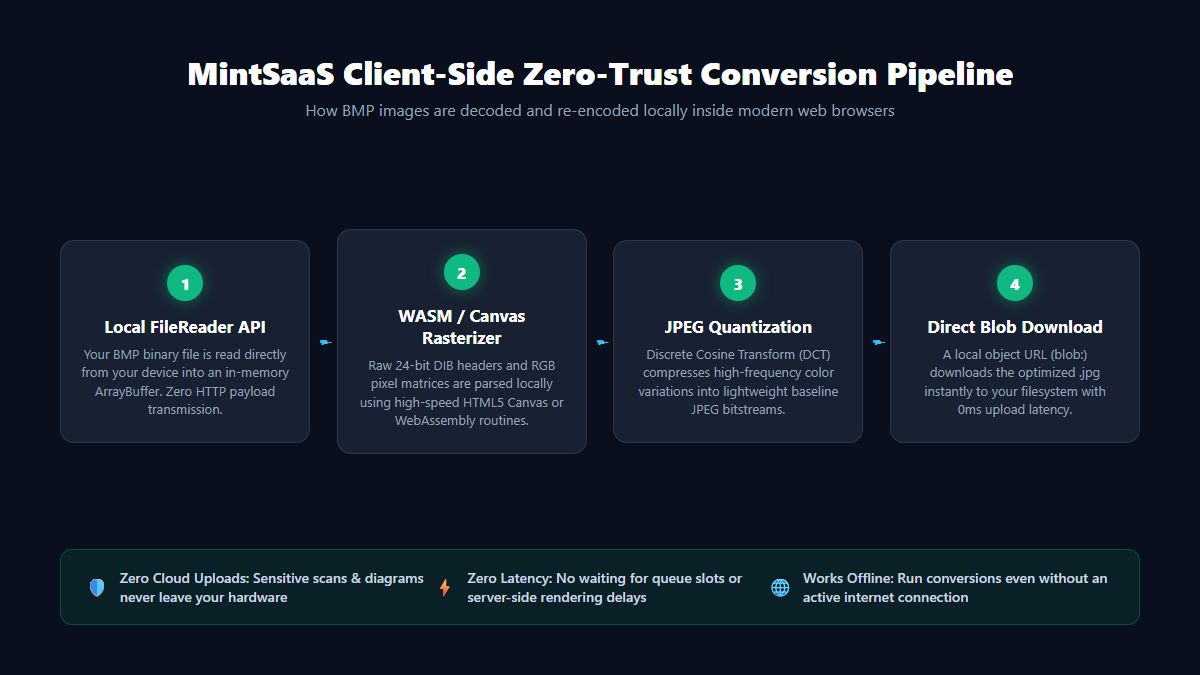
The MintSaaS BMP to JPG Tool is built on a Zero-Trust Client-Side Architecture. By leveraging modern browser HTML5 Canvas APIs, ArrayBuffers, and WebAssembly, all byte parsing, DCT quantization, and JPEG encoding occur strictly inside your local device RAM.
Zero bytes are transmitted over the internet, and your confidential files are never saved on external hard drives or cloud databases.
Step-by-Step Tutorial: How to Convert BMP File to JPG Online
Follow this walkthrough to convert individual or batch BMP images with optimal fidelity:
Step 1: Open the MintSaaS BMP Conversion Studio
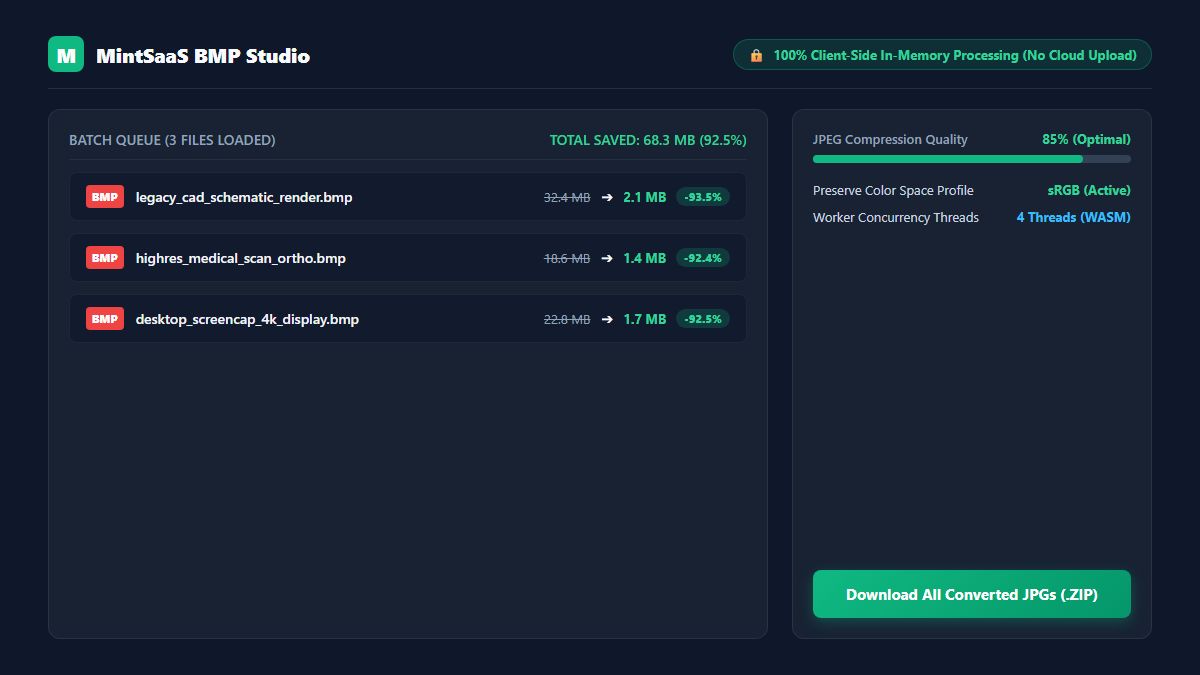
Navigate to the MintSaaS BMP to JPG Converter. The application loads instantly and is ready to execute conversions immediately—even if your internet connection disconnects.
Step 2: Upload Your BMP Images (Single or Batch)
Drag and drop your .bmp files onto the conversion workbench, or click Browse Files to select images from your local drive. You can upload dozens of files simultaneously; our multi-threaded WebAssembly worker processes batch conversions in parallel without slowing down your browser.
Step 3: Fine-Tune Compression Settings
Configure your export parameters based on your intended destination:
- 85% Quality (Recommended for Web & General Use): Delivers a 92% file size reduction with imperceptible visual difference compared to the raw uncompressed bitmap.
- 95% Quality (High-Fidelity Archival): Retains maximum high-frequency clarity for technical diagrams, CAD exports, and fine medical text.
- 70% Quality (Ultra-Lightweight): Maximizes compression for thumbnail generation, mobile messaging, or constrained email payloads.
Step 4: Download Your JPG Output
Click Download next to any converted image, or click Download All (.ZIP) to retrieve your complete image batch in a tidy, organized archive.
Recommended Quality Settings for Different BMP Use Cases
Selecting the correct JPEG compression quality during your bmp file to jpg conversion ensures you achieve the ideal balance between byte savings and visual precision:
1. Technical Drawings & CAD Schematics
- Challenge: Thin lines, vector-like text, and high-contrast boundaries are vulnerable to JPEG ringing artifacts around hard edges.
- Optimal JPEG Quality: 90% – 95%
- Alternative Consideration: For schematics consisting solely of flat colors and sharp text, you can also consider converting to PNG via PNG to JPG or our Image Editor.
2. Digital Photography & Scanned Art
- Challenge: Smooth color gradients, skin tones, and rich natural lighting.
- Optimal JPEG Quality: 80% – 85%
- Result: Drastic 92% size decrease with zero visible compression banding.
3. Desktop Screenshots & Application Captures
- Challenge: Preserving legible UI typography and icon boundaries.
- Optimal JPEG Quality: 82% – 88%
- Next Steps: If your screenshot requires cropping out sensitive personal credentials before sharing, use our integrated Online Image Cropper or Blur Image Tool.
How to Convert BMP to JPG on Desktop Operating Systems (Offline)
If you prefer to convert a bmp file to jpg using built-in desktop utilities without a web browser, here is how to accomplish it on Windows, macOS, and Linux:
On Windows 11 / 10 (Using Microsoft Paint)
- Right-click your
.bmpfile and choose Open with > Paint. - Click File in the top menu and select Save as > JPEG picture.
- Choose your destination directory and click Save.
Note: Paint converts files one-by-one and does not provide batch processing or compression quality controls.
On macOS (Using Preview)
- Double-click the
.bmpimage to open it in Apple Preview. - Click File > Export...
- In the Format dropdown, select JPEG, adjust the Quality slider, and click Save.
- To batch convert in macOS: Select multiple BMP files in Finder, open them simultaneously in Preview, select all thumbnails in the left sidebar (
Cmd + A), and click Export Selected Images...
On Linux (Using ImageMagick CLI)
For automated server scripts or Linux developer workstations, install ImageMagick and run:
# Single file conversion
convert sample_diagram.bmp -quality 85 sample_diagram.jpg

# Batch conversion across an entire directory
mogrify -format jpg -quality 85 *.bmp
Complementary MintSaaS Image Utilities
Once you have converted your bmp file to jpg, MintSaaS offers a full suite of client-side web tools to further manipulate and optimize your digital visual assets:
- Crop Image Online: Trim margins, adjust aspect ratios (16:9, 4:3, 1:1), and focus on essential visual regions.
- Rotate Image Tool: Fix orientation errors and rotate images 90°, 180°, or 270° with zero quality loss.
- Blur Image Tool: Obscure sensitive personal data, license plates, faces, or proprietary software credentials.
- Batch Compress Image: Squeeze additional bytes from standard JPEGs and PNGs for lightning-fast web delivery.
- WebP Converter: Convert your resulting JPEGs into next-generation Google WebP files for maximum SEO performance.
Frequently Asked Questions (FAQ)
Will converting a BMP file to JPG reduce image quality?
Because JPEG is a lossy compression format, some high-frequency color data is mathematically simplified. However, when encoding at 85% quality, the visual difference is virtually imperceptible to the human eye, while the file size is reduced by up to 94%.
Why are BMP files so much larger than JPGs?
BMP files store raw, uncompressed RGB pixel matrices where every individual pixel occupies 24 bits (3 full bytes) of storage. In contrast, JPEG utilizes Discrete Cosine Transform (DCT) and chroma subsampling to mathematically compress image patterns, discarding details that human vision cannot distinguish.
Is it safe to convert confidential medical or business BMP files on MintSaaS?
Yes, absolutely. MintSaaS processes 100% of image conversions inside your web browser's local memory using WebAssembly. Your files are never uploaded to any remote server or stored in the cloud.
Can I batch convert multiple BMP files to JPG simultaneously?
Yes. Drag dozens of .bmp files into the MintSaaS BMP to JPG Studio. Our multi-threaded client engine processes them concurrently and allows you to download all converted JPGs in a single ZIP file.
Can I convert a JPG back into a BMP?
Yes, you can open any JPG and export it as a BMP file. However, doing so will not restore any lost detail from the original JPEG compression; it will merely multiply the file size by 10x to 15x by storing the existing pixel values uncompressed.
Conclusion & Next Steps
Uncompressed BMP files belong to a bygone era of offline desktop workstations. By converting your bmp file to jpg, you slash storage footprints, eliminate email rejection errors, ensure seamless mobile compatibility, and drastically accelerate web load speeds.
Ready to optimize your files? Visit the MintSaaS BMP to JPG Converter and convert your images with complete privacy and blistering speed today.
More from MintSaaS Dispatch
Handcrafted technical insights and developer tools.

Centralized Business Management Software: The Unified Operating System for Growing Companies

Mac Software Management: The Complete 2026 Enterprise Fleet & MDM Guide
