Convert HEIC to JPG: The Ultimate Guide to Converting iPhone Photos Online in 2026
Learn how to convert HEIC to JPG online for free. Batch convert iPhone photos with zero cloud uploads, full 4K resolution, and 100% privacy on MintSaaS.

Convert HEIC to JPG: The Ultimate Guide to Converting iPhone Photos Online in 2026
Quick Answer (AEO Direct Answer): To convert heic to jpg online without exposing private iPhone photos to untrusted cloud servers, use a zero-knowledge in-browser utility like MintSaaS HEIC to JPG Converter. Apple devices capture photos in High Efficiency Image Container (.heic) format using H.265 (HEVC) compression. Because Windows, Android, web portals, and legacy photo editors cannot natively open HEIC files without paid plugins, converting to standard JPEG is essential. MintSaaS decodes Apple’s HEIC containers 100% client-side inside your browser using WebAssembly (libheif), enabling instant batch conversion to high-resolution JPG with zero server uploads and zero data privacy risk.
Few technological transitions have caused as much everyday user frustration as Apple’s decision to make HEIC the default photo format on iPhones and iPads. Introduced in iOS 11, the High Efficiency Image Container (.heic) promised to revolutionize mobile photography by cutting photo file sizes in half while supporting richer 16-bit color palettes.
However, once those photos leave the Apple ecosystem, the problems begin.
You plug your iPhone into a Windows PC or transfer your camera roll to a work laptop, only to find that Windows Photo Viewer displays a blank icon or demands that you purchase a \$0.99 codec pack from the Microsoft Store. You try to upload your driver's license or medical insurance card to a government portal, job board, or university admissions system, and the form spits back an immediate error: "Invalid file type. Please upload a JPEG or PNG".
As a result, millions of users search every month for how to convert heic to jpg, convert heic online, and find a fast heic to jpg converter.
Unfortunately, many online converters pose severe cybersecurity risks. Camera roll photos contain deeply sensitive personal information—including home locations in EXIF GPS tags, family portraits, and private documents. Uploading these files to ad-supported cloud servers risks storage bucket leaks and unauthorized AI data harvesting.
In this comprehensive technical guide, we break down why Apple adopted HEIC, examine the underlying HEVC (H.265) compression architecture, compare client-side WebAssembly against cloud upload converters, and show you how to safely and losslessly convert heic to jpg in bulk with 100% privacy.
1. What is an HEIC File and Why Do You Need to Convert HEIC to JPG Images?
To understand why you need to convert heic to jpg, it helps to explore the engineering history behind modern mobile image formats.
The Apple HEIF/HEVC Standard
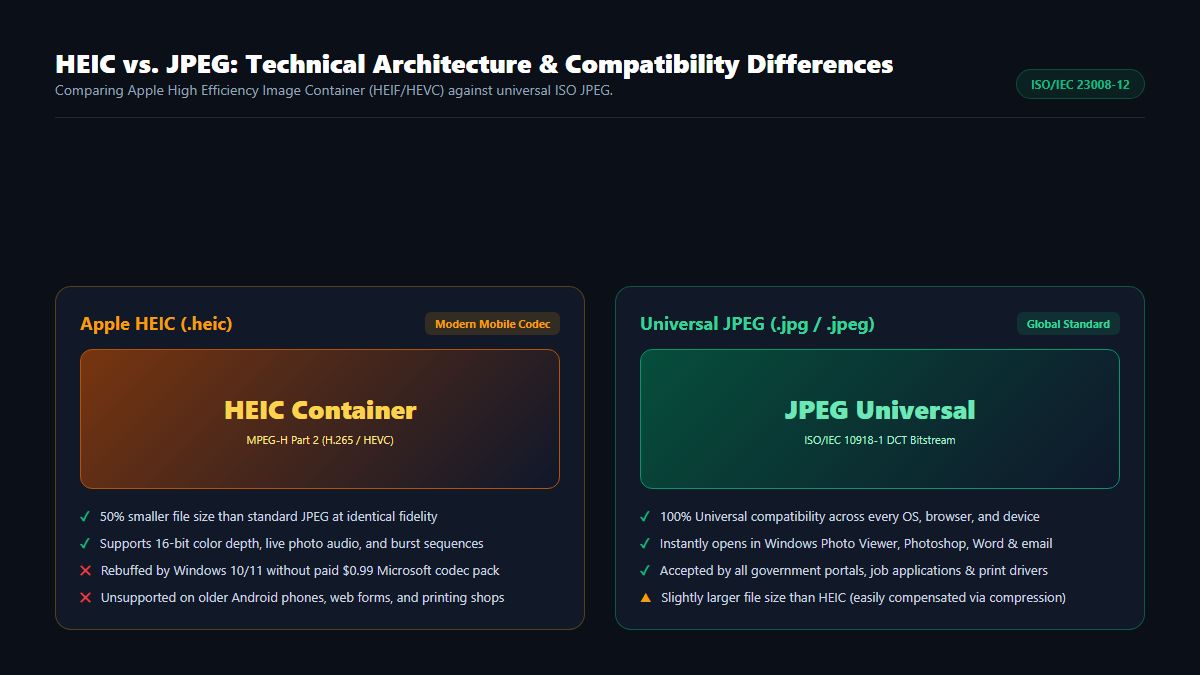
In 2017, Apple introduced HEIC based on the ISO/IEC 23008-12 High Efficiency Image File Format (HEIF) standard developed by the Moving Picture Experts Group (MPEG).
Rather than compressing static images with traditional Discrete Cosine Transform (DCT) algorithms like JPEG, HEIC utilizes the advanced intra-frame coding techniques of High Efficiency Video Coding (HEVC / ITU-T H.265).
Key advantages of the HEIC container include:
- 50% Smaller File Size: A 12-megapixel photo that occupies 4.5 MB as a JPEG consumes only 1.8 MB to 2.2 MB in HEIC at equivalent visual quality.
- 16-bit Color Gamut Support: Standard JPEGs are locked to 8-bit color (16.7 million colors), whereas HEIC supports up to 16-bit deep color, eliminating banding across sky gradients and shadows.
- Multi-Item Encapsulation: A single
.heicfile can bundle multiple images, alpha transparency masks, depth maps for Portrait mode bokeh, and short video clips for Apple Live Photos.
The Compatibility Crisis on Non-Apple Platforms
Despite its technical brilliance, the broader computing world has been slow to adopt HEIC due to complex patent licensing pools surrounding H.265:
- Windows 10 and 11: Microsoft does not bundle native HEVC codecs out of the box. Users who double-click an iPhone photo are directed to pay for the "HEVC Video Extensions" in the Microsoft Store.
- Android & Chromebooks: Older Android versions and lower-tier mobile hardware lack hardware-accelerated HEVC decoders, rendering
.heicfiles unopenable in gallery apps. - Web Upload Portals: The vast majority of insurance claim portals, bank KYC identity verification forms, e-commerce marketplaces (eBay, Shopify, Amazon), and real estate MLS systems accept only standard
.jpgand.pngextensions. - Desktop Creative Software: Legacy versions of Adobe Lightroom, Photoshop, and Corel PaintShop Pro refuse to import raw HEIC files.
These compatibility barriers make a reliable, private way to convert heic to jpg essential for anyone managing photos across mixed operating systems.
2. Under the Hood: How Client-Side HEIC to JPG Conversion Works
When you use a modern browser tool to convert heic to jpg, what happens inside your device’s memory?
The Decoding Architecture: libheif in WebAssembly
HEIC files are fundamentally ISO Base Media format containers wrapping H.265 video bitstreams. Decompressing these streams requires an industrial-grade video/image decoder.
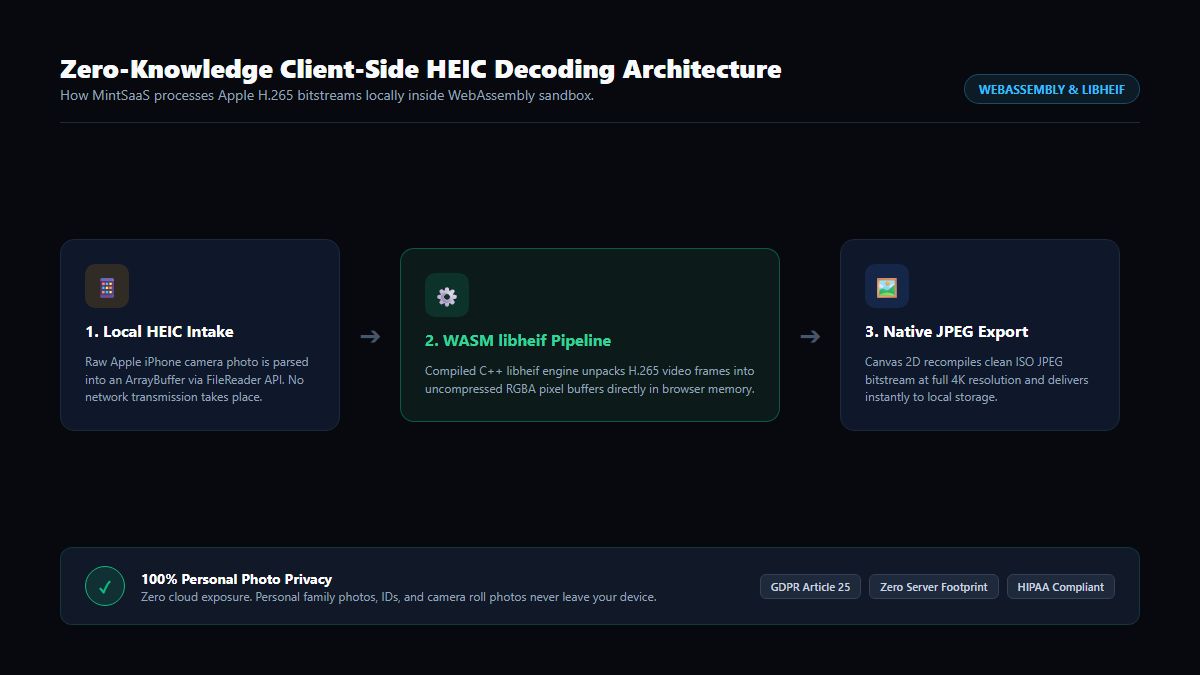
Here is how the MintSaaS HEIC to JPG Converter processes your files entirely within your web browser:
- Local File Ingestion: Your
.heicfiles are read into browser memory as raw binaryArrayBufferobjects via the HTML5 FileReader API. No network upload request is initiated. - WASM libheif Pipeline: The browser loads a compiled WebAssembly (WASM) build of the open-source
libheiflibrary. This sandboxed C++ engine parses the HEIF item boxes, isolates the primary image grid, and decompresses the HEVC macroblocks into an uncompressed 32-bit RGBA pixel buffer inside your device's RAM. - EXIF Metadata Preservation: The decoder extracts embedded camera metadata—including camera model, aperture, shutter speed, ISO, and orientation tags—so your photo retain its historical capture context.
- Hardware-Accelerated JPEG Re-encoding: The uncompressed pixel buffer is rendered onto an off-screen HTML5 Canvas and compiled into a standard ISO/IEC 10918-1 JPEG binary using native browser graphics pipelines.
- Instant Local Delivery: The resulting JPEG is converted into a local
BlobURL and delivered straight to your downloads folder.
Because the entire decoding and re-encoding process takes place within your local CPU sandbox, you can convert heic to jpg at native speeds with zero server lag.
3. Comparison: Traditional Cloud Converters vs. MintSaaS Client-Side Studio
Before you upload your private photos to a random web utility, compare the architectural differences between traditional cloud converters and MintSaaS:
| Architectural Metric | Ad-Supported Cloud Converters | Paid Desktop Software Suites | MintSaaS In-Browser Studio |
|---|---|---|---|
| Processing Location | Remote Third-Party Web Server | Local Computer CPU | 100% In-Browser (WASM sandbox) |
| Personal Photo Privacy | High Risk (Files uploaded to cloud) | 100% Secure (Local) | Zero-Upload (Zero Trust Compliant) |
| Batch Processing Speed | Limited by internet upload speed | Fast local hardware | Near-Instant (No upload latency) |
| Resolution Retention | Frequently downsamples to 1080p | Full native resolution | Full 12MP / 48MP Native 4K |
| EXIF Metadata | Often stripped or harvested | Preserved | Preserved / Cleaned safely |
| Cost & Subscriptions | Freemium / Paywalls / Ads | \$30–\$90 one-time license | 100% Free Forever |
| Daily File Limits | Typically 5 to 10 files per day | Unlimited | Unlimited Batch Conversion |
4. Top Real-World Use Cases for Converting HEIC to JPG
Being able to seamlessly convert heic to jpg accelerates everyday tasks across numerous personal and professional scenarios:
1. Submitting Official Documents & ID Verification
Government agencies, DMV renewals, passport applications, and banking apps require scanned photos of identification (driver’s licenses, passports, utility bills). Submitting a raw .heic file often results in immediate application rejection. Running the photo through an in-browser tool to convert heic to jpg ensures immediate acceptance.
2. Sharing iPhone Photos with Windows & Android Users
Sending an email attachment containing .heic files to family members or colleagues on Windows PCs or Samsung Galaxy devices often results in frustration when they cannot open or preview the images. Converting to universal JPEG guarantees that everyone can view your photos without installing third-party apps.
3. E-Commerce & Marketplace Product Listings
If you sell merchandise on eBay, Facebook Marketplace, Poshmark, or Shopify, taking product photos on an iPhone is standard practice. However, many e-commerce backends reject raw HEIC files during listing creation. Converting your camera roll batch to JPG ensures rapid catalog uploads.
4. Real Estate Photography & Virtual Tours
Real estate agents capturing property walkthroughs on iPhone 15 and 16 Pro models frequently discover that multiple listing service (MLS) portals cannot ingest raw HEIC files. Converting camera rolls to high-resolution JPEG preserves room lighting dynamics while satisfying strict MLS submission requirements.
5. Graphic Design & Commercial Printing
Professional print labs and commercial photo printers operate on strict ICC color-calibrated postscript RIPs designed for standard JPEG and TIFF bitstreams. If you want to print wedding photos or family canvases at Costco, Walgreens, or professional print houses, converting your HEIC images to high-quality JPEG is required.
To crop, crop margins, or convert other modern web graphics, pair this with our Crop PNG Image Online Guide or WebP File Converter Guide.
5. Step-by-Step Tutorial: How to Convert HEIC to JPG Online with MintSaaS
Converting dozens of iPhone photos takes only seconds with the MintSaaS in-browser studio:
Step 1: Open the Tool to Convert HEIC to JPG Online
Navigate to the MintSaaS HEIC to JPG Converter on your desktop, laptop, or mobile browser.
Step 2: Select or Drag the Photos You Need to Convert HEIC to JPG
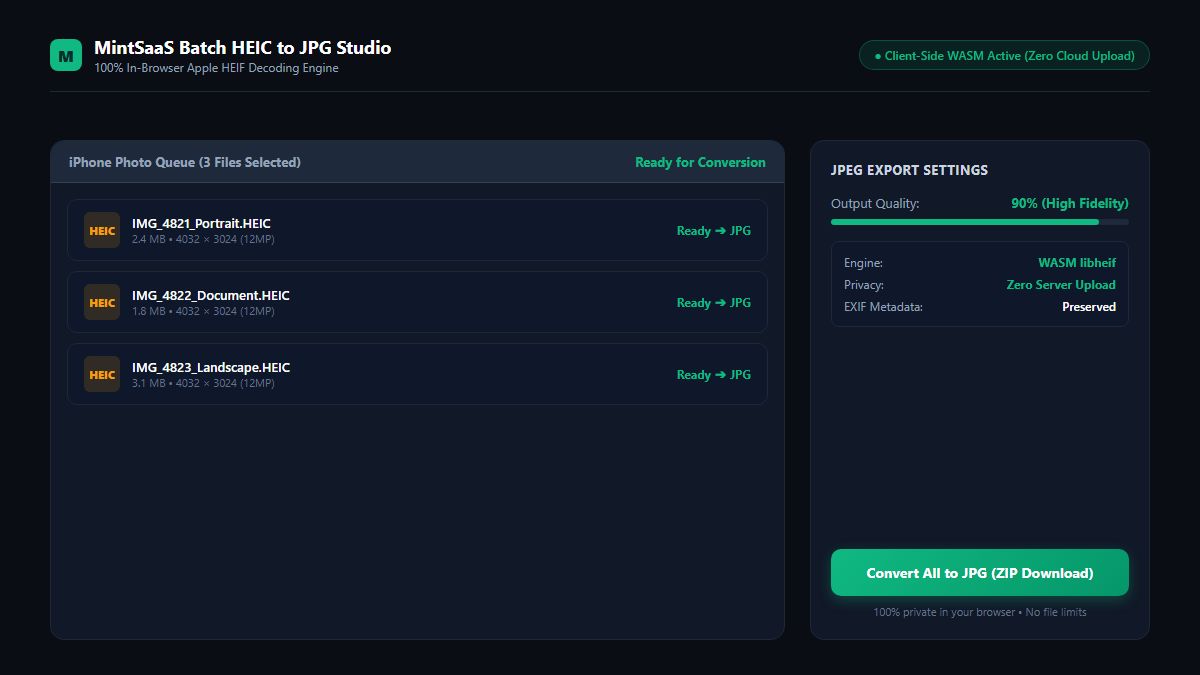
Drag and drop your .heic files directly into the upload area, or click Browse Files to select photos from your device. You can select single photos or bulk-select entire folders. Because our tool operates client-side, files load into memory instantaneously.
Step 3: Configure Output Quality
Select your desired JPEG quality level. We recommend 90% for maximum visual fidelity with efficient file size.
Step 4: Convert and Download Instantly
Click Convert to JPG. The WebAssembly decoder unpacks each image in fractions of a second. Once complete, click Download All as ZIP to save your entire converted camera roll in one convenient archive, or download individual photos as needed.
Need to optimize or edit further? You can immediately compress large files with our Batch Image Compressor or crop unwanted borders with our Crop Image Tool.
6. How to Change Your iPhone Camera Settings to Capture JPEG by Default
If you rarely use Apple Live Photos or high-resolution video and prefer to avoid needing to convert heic to jpg in the future, you can configure your iPhone to shoot in universal JPEG automatically:
- Open the Settings app on your iPhone.
- Scroll down and tap Camera.
- Tap Formats at the top of the menu.
- Switch the setting from High Efficiency to Most Compatible.
Note: Selecting "Most Compatible" forces your iPhone to save photos as standard JPEG and videos as H.264. However, 4K at 60 fps and 1080p at 240 fps slow-motion video require High Efficiency (HEVC) and will not be available in Most Compatible mode.
7. Security & Privacy: Why Uploading Camera Rolls to Cloud Converters is Dangerous
When you search for convert heic to jpg, most ad-supported utilities require uploading your photos to remote cloud servers. This exposes you to significant risks:
- GPS Geolocation Leaks: iPhone photos embed precise latitude, longitude, and altitude coordinates in their EXIF metadata. Uploading photos of your home, family, or children to unvetted cloud servers allows rogue operators to map your physical address.
- Unauthorized AI Training: Several free photo converter portals sell uploaded user images to third-party AI vision vendors to train facial recognition and generative diffusion models.
- Storage Bucket Data Breaches: Multi-tenant cloud servers frequently suffer from bucket misconfigurations, leaving millions of customer photos publicly searchable on the open web.
The MintSaaS Privacy Commitment
MintSaaS eliminates this vulnerability entirely:
- Zero Server Uploads: Your photos never touch our servers or third-party networks.
- Client-Side Sandbox: The entire
libheifWebAssembly engine runs in your browser's private sandbox. - Offline Capable: You can disconnect your internet completely and convert your entire camera roll offline.
8. Frequently Asked Questions (FAQ)
How do I convert HEIC to JPG for free online?
You can convert heic to jpg for free using the MintSaaS HEIC to JPG Converter. Simply drag your .heic photos into the browser, adjust your desired quality, and download standard JPEG files. There are no fees, no watermarks, and no file limits.
Does converting HEIC to JPG reduce image quality?
When converting with MintSaaS at 90% or higher quality, the conversion is visually lossless. All fine details, facial textures, and dynamic range from your iPhone's camera sensor are faithfully preserved in the exported JPEG.
Can I convert multiple HEIC files at once?
Yes. MintSaaS supports unlimited batch conversion. You can drop dozens of iPhone photos into the converter simultaneously and download the entire collection as a single ZIP file with one click.
Are my private iPhone photos safe on MintSaaS?
Yes, 100% safe. Unlike traditional conversion websites that upload your personal pictures to cloud servers, MintSaaS processes everything locally in your web browser using WebAssembly. Zero bytes of your photos are ever transmitted over the internet, ensuring full compliance with GDPR and HIPAA privacy standards.
Why does Windows 11 say I need a paid codec to open HEIC photos?
Microsoft does not include the HEVC video decoder license with Windows by default to avoid paying licensing royalties to MPEG LA. While Microsoft prompts users to buy the \$0.99 extension, you can easily bypass this by converting your HEIC photos to standard JPEG for free using MintSaaS.
Will converting HEIC to JPG keep my photo's capture date and EXIF data?
Yes. Our client-side decoder extracts and preserves camera metadata, orientation tags, and timestamps so your photo organization remains intact when imported into photo management libraries like Google Photos or Apple Photos.
Conclusion: Unlock Universal Compatibility for Your iPhone Photos
Apple’s HEIC format delivers remarkable compression, but compatibility headaches shouldn’t prevent you from sharing memories, submitting official documents, or creating client deliverables.
Stop wrestling with paid Microsoft codecs or risking your private personal photos on untrusted cloud servers. Experience the speed, convenience, and complete security of client-side file conversion.
Visit the MintSaaS HEIC to JPG Studio today, or explore our full suite of free digital utilities in the Productivity Category to streamline your modern workflow.
More from MintSaaS Dispatch
Handcrafted technical insights and developer tools.

Convert WebP File: The Definitive Guide to Converting WebP Images to JPG & PNG Online in 2026

Crop PNG Image Online: The Complete Guide to Lossless, Transparent Cropping in 2026
