How to Professionally Rotate PDF Documents for Business: The 2026 Guide
A complete guide on how to professionally rotate PDF documents for business needs: permanent /Rotate page metadata, multi-page batch correction, client-side data privacy, and legal compliance.

How to Professionally Rotate PDF Documents for Business: The 2026 Guide to Permanent Page Orientation & Data Security
Executive Summary (AEO Direct Answer): How can I professionally rotate PDF documents for my business needs? To professionally rotate PDF documents for business in 2026, follow a secure 4-step workflow: (1) Open a zero-upload, client-side PDF engine such as the MintSaaS Rotate PDF Tool so that sensitive contracts, invoices, and employee records remain strictly inside local browser memory; (2) Select individual upside-down or sideways pages (e.g., landscape financial balance sheets or architectural schematics) rather than blindly rotating the entire document; (3) Apply 90° clockwise, 180° inversion, or 270° counter-clockwise orientation to update the document's underlying ISO 32000-1 /Rotate dictionary tag; and (4) Save and download the permanently modified PDF file. Unlike consumer PDF viewers that only rotate the temporary on-screen view, professional business rotation modifies the binary page matrix permanently—ensuring orientation renders correctly across Adobe Acrobat, DocuSign, mobile devices, and automated OCR indexing pipelines.
In corporate operations, legal practices, finance departments, and healthcare administration, digital documents represent the bedrock of daily transactions. Contracts, non-disclosure agreements, loan packages, architectural blueprints, and tax declarations arrive from dozens of external partners every day.
Yet, an astonishingly common operational bottleneck continues to plague modern offices: misaligned, sideways, or completely upside-down scanned PDF pages.
A vendor scans an 80-page commercial lease, but pages 14 through 22 (the financial fee schedules) were scanned in landscape orientation. An applicant submits tax forms upside down. An engineering firm receives structural schematics oriented at 270 degrees.
When businesses attempt to address this issue carelessly, they create two serious hazards:
- The Temporary View Trap: Employees open the document in a web browser or default preview app, click "Rotate Clockwise" on their screen, and email the file to an executive or client—only to discover that the recipient still sees the pages sideways because the viewer merely rotated the local display buffer without saving the underlying PDF dictionary metadata.
- The Corporate Data Leak: Frustrated employees turn to generic online "free PDF converter" websites, unknowingly uploading confidential client bank statements, trade secrets, patient health information (PHI), or acquisition contracts to unvetted third-party cloud servers, violating GDPR, HIPAA, and corporate confidentiality covenants.
Understanding how to professionally rotate PDF documents for business needs requires mastering the technical difference between temporary display rotation and permanent structural metadata, while ensuring zero data exfiltration.
In this comprehensive guide, we examine the PDF page specification, explain how to execute selective and batch rotations without quality degradation, evaluate enterprise data compliance protocols, and show you how to streamline your document workflow using our client-side MintSaaS PDF Toolkit.
1. The Underlying Engineering: How PDF Page Orientation Actually Works
To understand why PDF pages rotate incorrectly, it helps to look under the hood of the Portable Document Format as standardized by the International Organization for Standardization (ISO 32000-1).
A PDF file is not a flat image; it is a structured tree of vector objects, font dictionaries, content streams, and bounding coordinate boxes.
┌────────────────────────────────────────────────────────┐
│                   PDF Page Object Dictionary           │
├────────────────────────────────────────────────────────┤
│  /Type /Page                                           │
│  /Parent 3 0 R                                         │
│  /MediaBox [0 0 612 792]  <-- Dimensions (Portrait)    │
│  /Rotate 90               <-- Orientation Tag (Clockwise)│
│  /Contents 5 0 R                                       │
└────────────────────────────────────────────────────────┘
The /Rotate Dictionary Attribute
Within every PDF page object, the ISO specification reserves an integer tag named /Rotate. According to the official Adobe Acrobat PDF Reference Manual, the /Rotate attribute specifies the number of degrees by which the page should be rotated clockwise when displayed or printed.
The ISO standard mandates that this value must be an exact multiple of 90:
0: Default upright portrait orientation.90: 90 degrees clockwise rotation (typical for wide financial schedules and spreadsheets).180: Complete inversion (used when double-sided document feeders scan reverse pages upside down).270: 90 degrees counter-clockwise (270 degrees clockwise) rotation.
View-Only Rotation vs. Permanent Metadata Mutation
Why do PDF pages revert back to their sideways orientation when you close your PDF reader?
| Feature | View-Only Browser / Reader Rotation | Professional Permanent PDF Rotation |
|---|---|---|
| Mechanism | Adjusts the client UI viewport renderer locally. | Permanently rewrites the /Rotate tag in the PDF binary tree. |
| File Modification | The underlying PDF byte array is untouched. | The modified file structure is re-serialized and saved. |
| Cross-Platform Consistency | ❌ Fails on mobile, DocuSign, and recipient devices. | ✅ Renders identically across all PDF viewers, printers, and phones. |
| OCR & AI Extraction | ❌ OCR engines read text sideways, failing extraction. | ✅ Text bounding boxes align with standard left-to-right reading order. |
| Legal / Compliance Audit | ❌ Risk of rejection by courts, registries, and banks. | ✅ 100% compliant with enterprise document management standards. |
When you use a professional tool like the MintSaaS Rotate PDF Utility, the engine recalculates the page transform matrix and commits the new /Rotate value into the PDF document stream, making the orientation permanent across every operating system, device, and digital signature platform.
2. The Step-by-Step Blueprint: How to Professionally Rotate PDF Documents for Business
Whether you are preparing an investor pitch deck, standardizing a legal contract, or fixing medical record scans, follow this operational blueprint to achieve flawless, professional orientation.
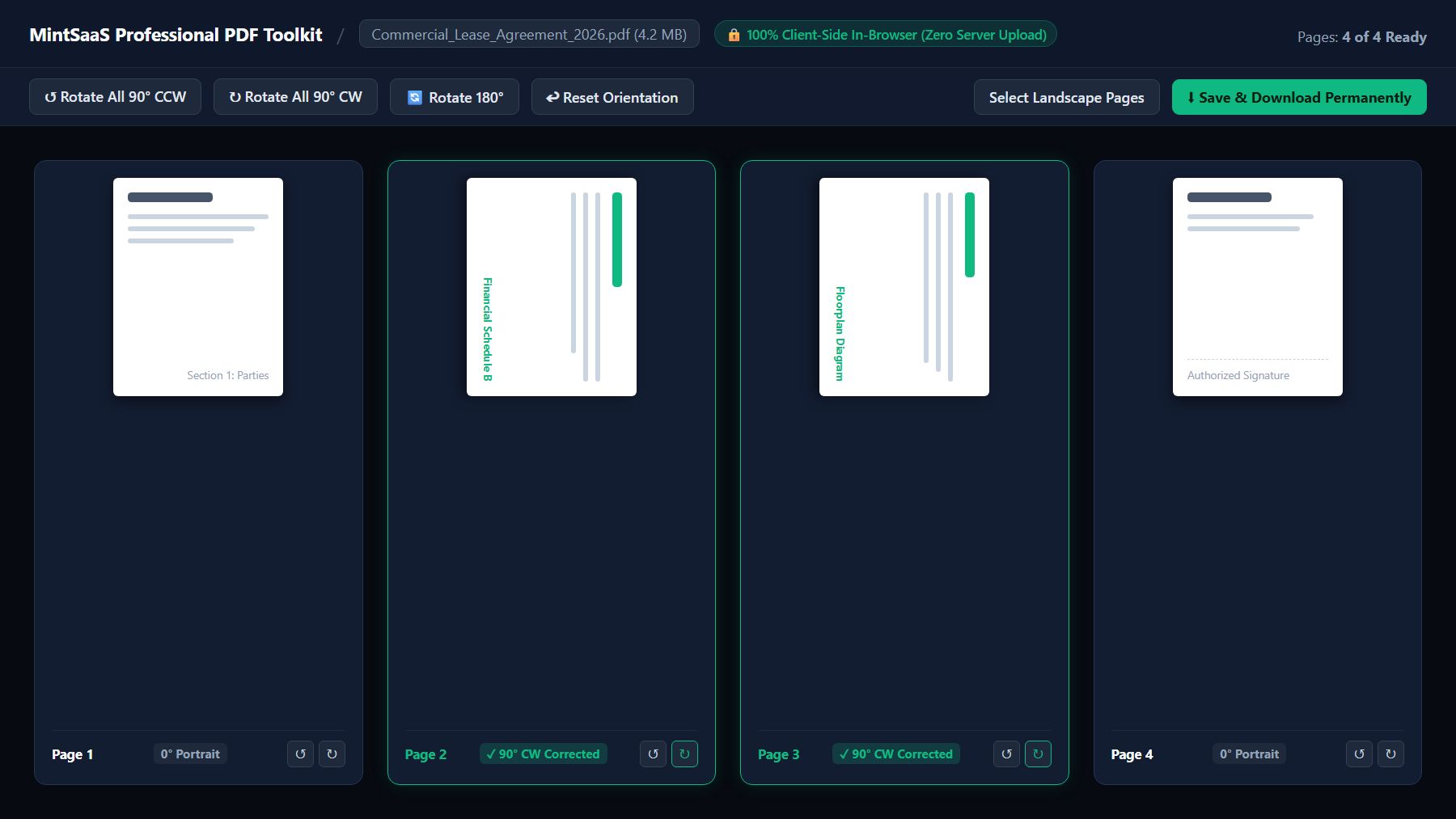
Step 1: Ingest the Document into a Zero-Upload Sandbox
Begin by navigating to the MintSaaS Rotate PDF Tool. Drag and drop your file or click Browse Files.
Unlike conventional converter websites that upload your file to an unknown remote server, the MintSaaS engine leverages modern WebAssembly and pdf-lib to read the document exclusively within your computer’s local memory. Your document never travels across the public internet.
Step 2: Audit Page Thumbnails in the Multi-Page Visual Grid
Once loaded, you will see a visual preview grid displaying every page of your document in high-fidelity thumbnail format.
Look for pages that disrupt the reading flow:
- Upside-Down Scans: Pages scanned via automatic document feeders (ADFs) that flipped duplex pages 180 degrees.
- Landscape Inserts: Financial balance sheets, Gantt charts, wide Excel export tables, or architectural diagrams tucked inside a standard 8.5" $\times$ 11" portrait contract.
Step 3: Choose Between Batch Rotation or Selective Page Orientation
Professional document management requires granular precision:
- Batch Document Correction: If an entire 30-page invoice scan was loaded upside down, click Rotate All 180° or Rotate All 90° CW to fix every page in a single click.
- Selective Page Orientation: If only Pages 5 and 12 contain wide financial tables, hover over those specific page cards and click the ↻ Rotate 90° Clockwise button. Each page can be oriented independently without altering the rest of the document.
Step 4: Verify Reading Order and Accessibility
Under the W3C Web Content Accessibility Guidelines (WCAG 2.1 Criterion 1.3.4), content must not restrict its view and operation to a single display orientation unless a specific orientation is essential.
Ensure that landscape exhibits can be read comfortably on desktop monitors without forcing users or automated screen readers to parse text rotated at 90-degree angles.
Step 5: Save and Download Permanently
Click Save & Download Permanently. The MintSaaS engine compiles the updated document in milliseconds and initiates an instant browser download.
You can now attach the corrected document to your MintSaaS Business CRM, send it for signature via DocuSign or Adobe Sign, or archive it in your company's secure document vault with complete confidence.
3. Data Security, Privacy, and Enterprise Compliance in PDF Processing
For business executives, compliance officers, and IT administrators, convenience must never compromise corporate security.
When employees need to know how can I professionally rotate PDF documents for my business needs, their primary concern is often speed. But uploading sensitive documents to indiscriminate web search converters poses catastrophic cybersecurity and legal liability risks.
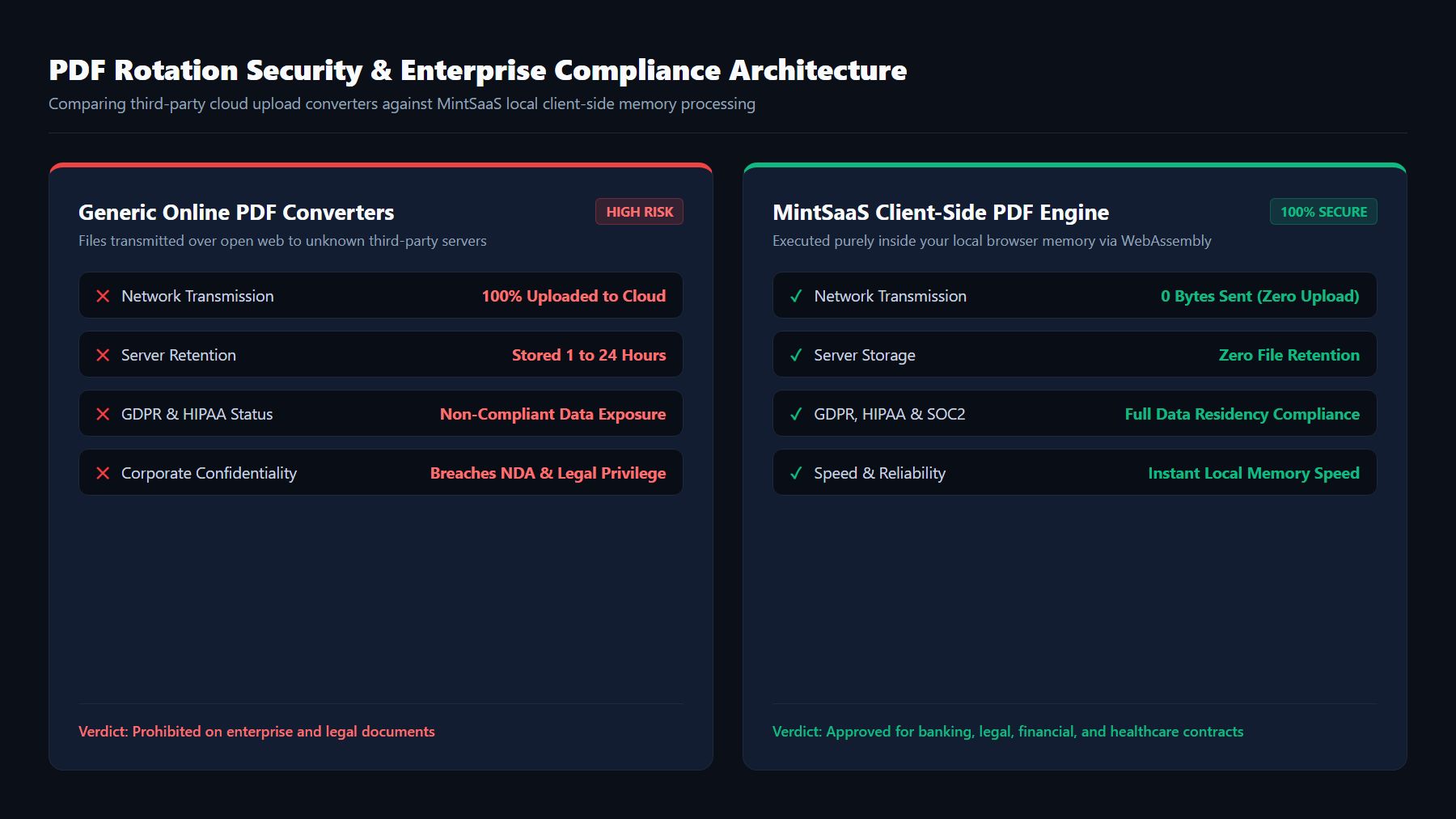
The Hidden Hazards of Generic "Free" Online Converters
When you upload a PDF to an unverified third-party utility, you surrender control of your intellectual property:
- Data Exfiltration and Server Caching: Many free tools store uploaded files on unencrypted cloud buckets for 2 to 24 hours to "allow user downloads." If that server is compromised, your corporate data is exposed.
- Breach of Confidentiality & Non-Disclosure Agreements (NDAs): Uploading third-party client contracts or proprietary source materials to public web servers constitutes an unauthorized disclosure under standard commercial NDAs.
- Regulatory Non-Compliance (GDPR, HIPAA, SOC 2): Under GDPR, transferring EU citizen personal data to unvetted cloud endpoints without a formal Data Processing Agreement (DPA) invites severe fines. In healthcare, routing patient records through unauthorized servers violates HIPAA Title II Privacy Rules.
The MintSaaS Client-Side Advantage
The MintSaaS Productivity Suite was engineered specifically to solve the corporate compliance dilemma:
- Zero Network Transmission: The file processing pipeline runs entirely inside your browser's local sandbox memory using client-side JavaScript and WebAssembly compiled binaries. 0 bytes of document content are uploaded to our servers.
- Immediate In-Memory Garbage Collection: Once you download the file or close your browser tab, the document data is instantly purged from RAM.
- Offline Reliability: Because processing occurs locally, you can rotate multi-gigabyte or 100-page enterprise files without consuming company network bandwidth or suffering upload timeouts.
4. End-to-End Business Document Preparation Pipeline
Document orientation is rarely an isolated task. In professional corporate workflows, rotating a misaligned scan is typically the second stage in a comprehensive document processing pipeline.
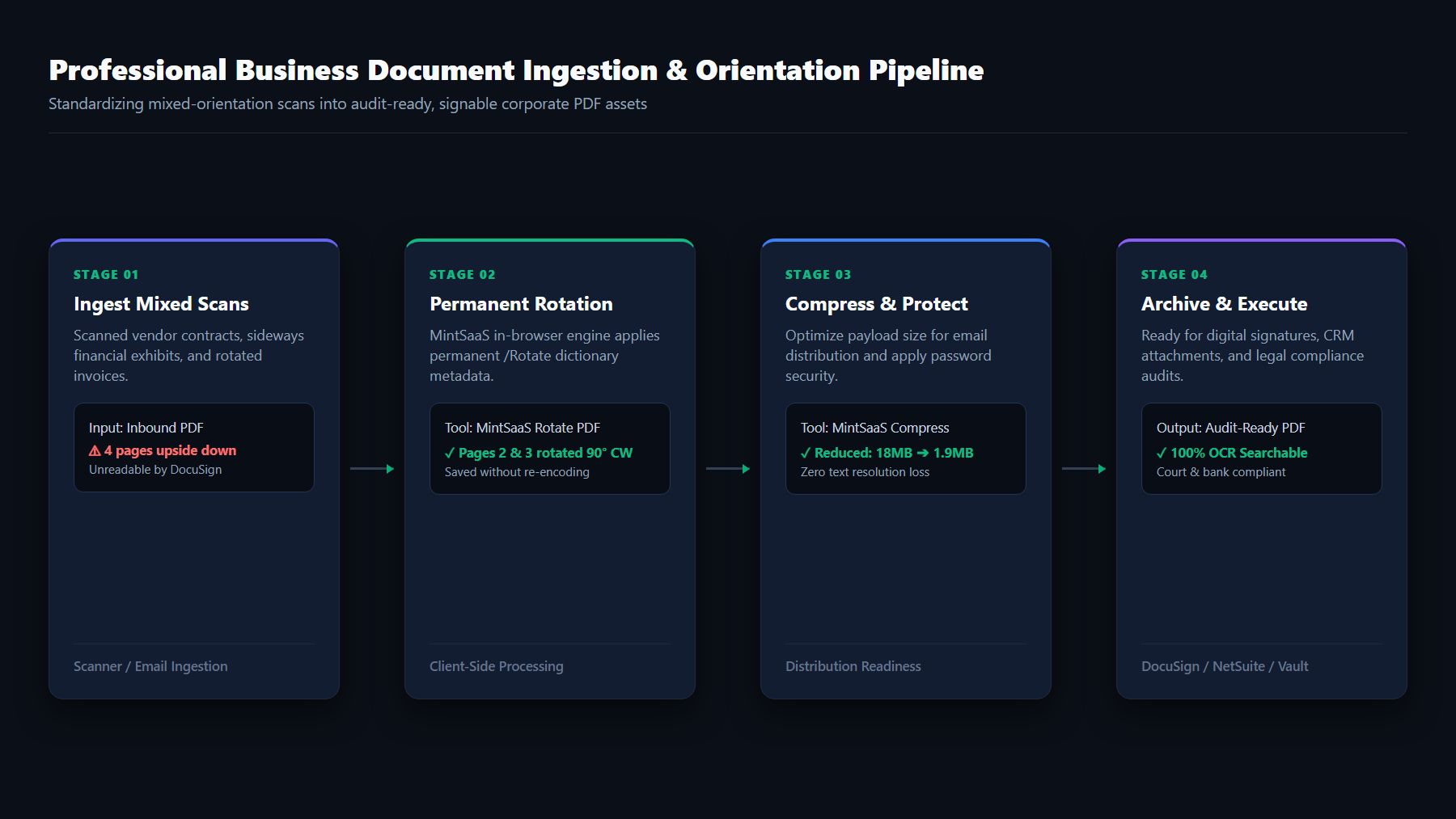
Stage 1: Document Ingestion and Normalization
When incoming paperwork arrives from paper scanners, email attachments, or mobile camera uploads, documents frequently arrive with mixed orientations, skewed pages, and missing margins.
Stage 2: Orientation Correction
Using the MintSaaS Rotate PDF Tool, operations teams correct upside-down sections, orient landscape tables right-side up, and verify that all headers and page numbers follow a coherent reading sequence.
Stage 3: Optimization and Page Management
Once oriented, the document often requires further structural refinement:
- Remove Redundant Blank Pages: Use MintSaaS Delete Pages to eliminate blank back-pages created by automatic document scanner duplexing.
- Combine Supporting Exhibits: Use MintSaaS Merge PDF to stitch separate signed addenda into the primary master agreement.
- Compress for Email Delivery: High-resolution 300 DPI optical scans can bloat an agreement to 25MB+, causing email server bounces. Run the file through MintSaaS Compress PDF to shrink the file size by up to 80% without blurring text or signature stamps.
Stage 4: Enterprise Execution & Compliance Archival
- Password Protection: Apply 128-bit or 256-bit AES encryption to confidential M&A packages or employee compensation sheets using MintSaaS Protect PDF.
- Digital Signing: Dispatch the perfectly oriented document for executive execution with MintSaaS Sign PDF.
To learn how to connect these document transformation steps into autonomous, zero-touch business pipelines, explore our comprehensive guide on How to Automate Repetitive Tasks in Business and our architectural deep dive on n8n Platform Guide for Enterprise Automation.
5. Departmental Use Cases: Why Proper PDF Orientation Matters
Professional PDF rotation is not merely an aesthetic preference—it directly impacts revenue velocity, legal enforceability, and brand credibility across core business departments.
1. Legal and Corporate Counsel
In commercial litigation and contract execution, page alignment is critical:
- Court E-Filing Mandates: Federal and state appellate courts enforce strict electronic filing specifications. Submitting an electronic brief or evidentiary exhibit with sideways or upside-down pages can result in immediate clerk rejection, missed filing deadlines, and court sanctions.
- Digital Signatures: Platforms like DocuSign and Adobe Acrobat Sign calculate signature tag placement based on the underlying PDF coordinate grid. If a page's
/Rotatetag is misconfigured, signature boxes may render in the wrong quadrant or fail to anchor properly.
2. Finance, Accounting, and Accounts Payable
Financial controllers handle massive volumes of invoice scans and quarterly ledgers:
- Automated Optical Character Recognition (OCR): Modern ERP engines (such as SAP, NetSuite, and QuickBooks) utilize automated OCR extractors to parse line items and PO numbers. When an invoice is rotated 90 or 180 degrees, OCR engines fail to locate key-value pairs, forcing accounting clerks into manual data entry.
- Landscape Financial Disclosures: 12-month trailing revenue sheets and audit balance tables naturally require landscape presentation. Rotating only these specific financial pages while keeping cover letters in portrait ensures clean executive presentation.
3. Commercial Real Estate and Construction
Architecture and property development rely heavily on mixed-orientation documents:
- Blueprints and Floorplans: A 50-page property lease may consist of 45 pages of portrait legal verbiage and 5 pages of wide architectural floorplans. Professionally rotating the 5 schematic pages allows leasing agents and municipal inspectors to review building drawings on iPads or laptops without awkward physical head tilting.
4. Human Resources & Talent Acquisition
HR onboarding documentation requires frictionless presentation:
- Identification & Tax Form Ingestion: When new hires photograph their passports, driver's licenses, or W-4 forms using smartphones, mobile cameras frequently save the orientation tag upside down. Normalizing these documents before filing ensures pristine personnel records.
6. How to Avoid Common Mistakes When Rotating Business PDFs
To ensure your document workflows remain audit-compliant, avoid these common operational pitfalls:
Mistake 1: Confusing "Print to PDF" with Clean Rotation
Some users attempt to rotate a PDF by opening it in a viewer, rotating the screen, and selecting Print ➔ Save as PDF.
- The Problem: "Printing to PDF" re-encodes the entire document, flattening vector text into rasterized images, stripping embedded digital signatures, corrupting OCR text layers, and doubling or tripling the file size.
- The Professional Solution: Use a native metadata rotator like MintSaaS Rotate PDF that simply updates the
/Rotatedictionary value without altering the underlying vector text streams or image compression codecs.
Mistake 2: Forgetting to Check Bookmarks and Table of Contents
When rotating pages in complex manuals or prospectus documents, always verify that embedded PDF bookmarks, hyperlinks, and interactive form fields still point to the correct coordinates. High-quality client-side utilities preserve the document’s navigational tree structure intact.
Mistake 3: Storing Unrotated Copies in Shared Drives
When teams collaborate across Google Drive, Dropbox, or OneDrive, leaving misaligned documents in shared folders creates cumulative team friction. Ensure team SOPs mandate that all inbound scanned documents are oriented, compressed, and standardized prior to repository archival.
7. Frequently Asked Questions (FAQ)
How can I professionally rotate PDF documents for my business needs without Adobe Acrobat?
You can professionally rotate PDF documents without Adobe Acrobat by using a high-performance browser-based tool like the MintSaaS Rotate PDF Tool. It runs completely client-side in your web browser, allowing you to rotate individual pages or entire documents permanently without paying expensive Adobe Creative Cloud subscription licenses.
Will rotating a PDF document reduce its visual quality or blur text?
No. When done properly using standard PDF page dictionary modification, rotating a PDF does not re-encode, compress, or rasterize the content. The underlying text vectors, embedded fonts, and high-resolution images remain 100% bit-for-bit identical; only the page display angle metadata (/Rotate) is updated.
Can I rotate just one page in a multi-page PDF without rotating the others?
Yes. Professional tools allow you to rotate specific individual pages independently. For example, if Page 3 of an agreement contains a wide landscape table while all other pages are portrait, you can rotate only Page 3 clockwise by 90 degrees while keeping the remainder of the document untouched.
Is it safe to rotate confidential company contracts using online tools?
It is unsafe to use generic online tools that upload your files to remote cloud servers, as this exposes confidential trade secrets, client data, and financial records to third-party interception. However, it is 100% safe to use client-side tools like MintSaaS Rotate PDF, because your files never leave your device’s local memory, ensuring strict compliance with GDPR, HIPAA, and corporate NDAs.
Why does my PDF look rotated in my browser, but reverts back when I email it?
This occurs because standard web browsers and basic document viewers often apply a temporary "viewport rotation" that only changes how the file is displayed on your current screen. Because the application did not update and re-save the permanent /Rotate tag in the PDF's file structure, any other recipient or mobile device will still open the document in its original, misaligned orientation.
How do I rotate a PDF 180 degrees permanently?
To permanently rotate a PDF 180 degrees (upside-down to right-side up), upload your document to MintSaaS Rotate PDF, click the ↻ Rotate 90° CW button twice (or select Rotate All 180°), and click Save & Download Permanently. The output file will render correctly across all devices and operating systems.
Conclusion: Upgrade Your Business Document Standards Today
In modern corporate environments, professionalism is defined by the details. Presenting clients, investors, court officers, or prospective hires with upside-down or sideways pages signals careless operations and creates avoidable administrative friction.
By mastering how to professionally rotate PDF documents for business needs, you ensure that every contract, invoice, and strategic report leaving your desk is clean, permanently aligned, and 100% secure.
Empower your workflow today with the free, private, client-side MintSaaS Rotate PDF Tool, explore our full suite of utilities across the MintSaaS PDF Toolkit and Image Compressor Tools, or learn how to eliminate more daily manual busywork in our operational guide to How to Automate Repetitive Tasks in Business.
More from MintSaaS Dispatch
Handcrafted technical insights and developer tools.

Convert WebP File: The Definitive Guide to Converting WebP Images to JPG & PNG Online in 2026

Crop PNG Image Online: The Complete Guide to Lossless, Transparent Cropping in 2026
