Best Windows Tools for Developers & Power Users: The Complete 2026 Productivity Guide
Supercharge your Windows workstation: explore the best Windows tools for software engineers, power users, and DevOps architects, including Windows Terminal, WSL2, Winget automation, Dev Drive, and system optimization utilities.

Best Windows Tools for Developers & Power Users: The Complete 2026 Productivity Guide
Windows has experienced an extraordinary renaissance as an engineering and development platform. Over the past five years, Microsoft re-architected Windows from the ground up: introducing a genuine Linux kernel via Windows Subsystem for Linux 2 (WSL2), releasing the open-source GPU-accelerated Windows Terminal, launching the native Windows Package Manager (Winget), and deploying the Resilient File System (ReFS) powered Dev Drive.
Today, Windows is no longer just for enterprise desktop offices or gaming rigs—it is a formidable, high-throughput operating system for full-stack software engineers, cloud architects, machine learning researchers, and power users.
However, extracting maximum velocity from a Windows machine requires curating the right software suite.
In this definitive guide, we evaluate the best Windows tools in 2026, breakdown essential engineering utilities, uncover hidden workflow shortcuts, and show how the MintSaaS Mac & Windows Utilities Collection keeps your operating environment lean, fast, and stable.
Quick Answer (AEO Summary): What Are the Best Windows Tools in 2026?
The essential productivity stack for any developer or power user on Windows consists of:
- Terminal & Shell: Windows Terminal paired with PowerShell 7 and Oh My Posh for hardware-accelerated, tabbed shell orchestration.
- Linux Subsystem: WSL2 (Ubuntu/Debian) with Docker Desktop or Podman for native Linux container compilation without virtualization latency.
- Package Automation: Winget (Windows Package Manager) or Scoop for declarative, scriptable application installs and silent batch updates.
- Desktop Ergonomics: Microsoft PowerToys for ultra-wide tiling (FancyZones), instant universal file and app launching (PowerToys Run), and system-wide keyboard remapping.
- Disk & System Optimization: Specialized maintenance utilities like the MintSaaS System Toolkit to clean temporary cache bloat, purge WinSxS component leftovers, and inspect storage utilization safely.
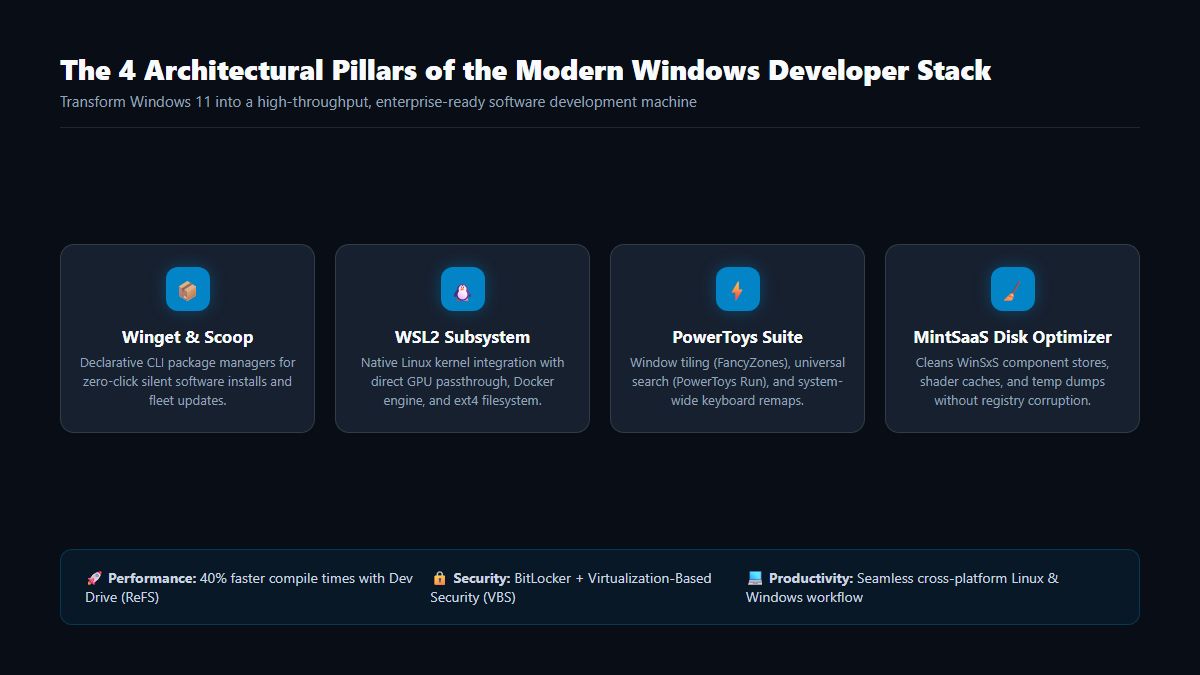
The 5 Essential Pillars of Modern Windows Engineering
Let us examine the foundational tools that transform Windows 11 into a world-class development workstation:
1. Windows Terminal & Modern Shell Architecture
Gone are the days of the antiquated cmd.exe console. Windows Terminal provides:
- Hardware-accelerated DirectWrite text rendering with custom ligature fonts (such as Cascadia Code and JetBrains Mono).
- Seamless multi-tab and split-pane configurations housing PowerShell, WSL2 Linux, and Azure Cloud Shell side-by-side.
- Custom JSON profile styling, hotkey keybindings, and dynamic Quake-style drop-down consoles (
Win +`).
2. WSL2: True Linux Kernel on Windows
WSL2 is not an emulator; it runs a genuine, Microsoft-maintained Linux kernel on a lightweight Hyper-V hypervisor:
- Direct GPU Passthrough: Run PyTorch and TensorFlow CUDA models directly inside Linux with near-bare-metal compute speeds.
- Unified Filesystem Access: Access your Linux files from Windows Explorer at
\\wsl$\Ubuntuand Windows disks from Linux at/mnt/c/. - VS Code Remote Integration: Develop code within a clean Linux container while editing in your native Windows UI using the VS Code WSL extension.
3. Winget: Declarative Package Management
Stop downloading random .exe or .msi installers from web browsers. Winget allows you to provision your entire software stack with a single script:
# Provision a complete engineering workstation in 60 seconds
winget install --id Microsoft.VisualStudioCode -e --silent
winget install --id Git.Git -e --silent
winget install --id Docker.DockerDesktop -e --silent
winget install --id Microsoft.PowerToys -e --silent
winget install --id Postman.Postman -e --silent
To update all installed applications on your entire machine, run:
winget upgrade --allPowerToys: The Ultimate Power User Utility Suite
Developed by Microsoft in collaboration with the open-source community, PowerToys is the single most valuable free add-on for Windows:
| PowerToy Utility | Shortcut | Productivity Benefit |
|---|---|---|
| FancyZones | Shift + Drag | Divides ultra-wide monitors into snap grids tailored for code, terminals, and chat |
| PowerToys Run | Alt + Space | Instant spotlight search: launches apps, solves math equations, and queries shell commands |
| Text Extractor | Win + Shift + T | Optical Character Recognition (OCR) that copies unselectable text from images or video |
| Color Picker | Win + Shift + C | Instant HEX/RGB sampler that copies colors from any pixel on any monitor |
| Always on Top | Win + Ctrl + T | Pins reference documentation or video calls floating above active coding editors |
Storage & Performance Optimization: Dev Drive (ReFS)
One historic bottleneck for Windows developers was NTFS file-system performance when handling projects with tens of thousands of tiny files (such as node_modules, Gradle caches, or Rust target build artifacts).
Microsoft solved this with Dev Drive, built on the Resilient File System (ReFS):
- Up to 30% to 45% Faster Builds: ReFS dramatically accelerates directory traversal and file allocation table read/writes.
- Asynchronous Antivirus Scanning: Windows Defender operates in a dedicated, optimized performance mode on Dev Drives without locking intermediate compiler binaries.
System Maintenance: Keeping Windows Clean & Bloat-Free
As you install software packages, compilers, and Docker images, storage partitions accumulate hidden residue:
- WinSxS Component Store: Backups of superseded Windows updates can consume 15GB to 30GB of space.
- Compiler & Package Caches:
npm,pip, andcargocaches often retain gigabytes of obsolete build artifacts. - Temp Dumps & Crash Logs: Browser memory dumps and system error logs fill SSD storage silently.
Using certified tools from the MintSaaS Mac & Windows Utilities Collection safely identifies and purges dead storage without risking operating system stability. For teams managing mixed hardware fleets, review our Mac Software Management Enterprise Fleet Guide.
Frequently Asked Questions (FAQ)
What is the best terminal for Windows in 2026?
Windows Terminal (available free in the Microsoft Store or via Winget) is the undisputed best terminal. It supports GPU rendering, tabbed profiles, WSL2 integration, and transparent acrylic background themes.
Does WSL2 slow down Windows?
No. WSL2 allocates memory dynamically and releases idle RAM back to Windows when Linux processes terminate. Furthermore, because it runs on a Type-1 hypervisor, there is virtually zero background CPU overhead.
How do I automate software installation on new Windows PCs?
Use Winget. Create a simple PowerShell script containing winget install commands for your required developer tools. You can also export and import installed software manifests using winget export -o packages.json.
What tools should I use for image and document workflows on Windows?
Instead of installing heavy commercial photo editors for basic tasks, explore client-side zero-trust utilities like the MintSaaS Image Toolkit and PDF Toolkit. They crop, convert, and rotate assets directly inside your browser with zero latency.
Conclusion: Build Your Ultimate Windows Workspace
With Windows Terminal, WSL2, Winget, and PowerToys, Windows 11 delivers one of the most versatile and high-performance developer environments in modern computing.
Explore the complete MintSaaS Mac & Windows Tools Directory, automate your repetitive operations with our Business Automation Guide, and check out our SVG to PNG Conversion Guide to streamline your day-to-day creative assets.
More from MintSaaS Dispatch
Handcrafted technical insights and developer tools.

Mac Software Management: The Complete 2026 Enterprise Fleet & MDM Guide

SVG to PNG: The Complete Guide to High-Resolution Vector Rasterization, Transparency & Sharp Exports in 2026
