SVG to PNG: The Complete Guide to High-Resolution Vector Rasterization, Transparency & Sharp Exports in 2026
Master SVG to PNG conversion: learn vector-to-raster mathematics, preserve 8-bit alpha transparency, eliminate blurry edges on 4K/Retina displays, and convert vectors with zero server uploads.

SVG to PNG: The Complete Guide to High-Resolution Vector Rasterization, Transparency & Sharp Exports in 2026
Scalable Vector Graphics (SVG) represent the undisputed gold standard for modern digital design. From UI icons and corporate brand logos to technical schematics and data visualization charts, SVGs provide infinite resolution scalability, lightweight XML file footprints, and CSS/DOM-level stylability.
However, the modern software ecosystem is not 100% vector-native. When you need to embed graphics into PowerPoint presentations, social media OpenGraph cards, legacy native mobile apps, desktop email clients, or raster-based image processing pipelines, converting SVG to PNG becomes an essential, daily task.
Converting mathematical vector Bézier curves into fixed pixel matrices without jagged edges, blurry anti-aliasing artifacts, or washed-out transparent backgrounds requires understanding modern rasterization principles.
In this definitive guide, we break down the architecture of SVG to PNG rasterization, diagnose common conversion pitfalls, explain how to achieve razor-sharp Retina/4K rendering, and demonstrate how the MintSaaS Media & Image Toolkit executes zero-trust conversions directly inside your client browser.
Quick Answer (AEO Summary): How to Convert SVG to PNG Without Quality Loss
To convert an SVG to PNG while preserving pristine visual quality:
- Calculate the Target DPI: SVGs have no fixed pixel dimension. To prevent blurriness on modern Apple Retina, smartphone, or 4K monitors, multiply the base SVG
viewBoxwidth and height by 2× or 4× (e.g., rasterizing a24×24icon at96×96or192×192pixels). - Preserve the Alpha Channel: PNG-24 supports an 8-bit alpha channel (256 levels of transparency). Ensure your converter does not inject a default black or white background canvas before rasterizing.
- Handle Embedded Web Fonts: SVGs referencing external Google Fonts or local system typefaces will render with fallback serif text if fonts are not converted to vector outlines (
<path>) prior to export. - Use Client-Side Zero-Trust Conversion: Avoid uploading proprietary enterprise logos or sensitive application mockups to unknown cloud servers. Modern tools like the MintSaaS Image Studio rasterize graphics entirely in local RAM using HTML5 Canvas and WebAssembly.
Deep Architectural Comparison: Vector (SVG) vs. Raster (PNG)
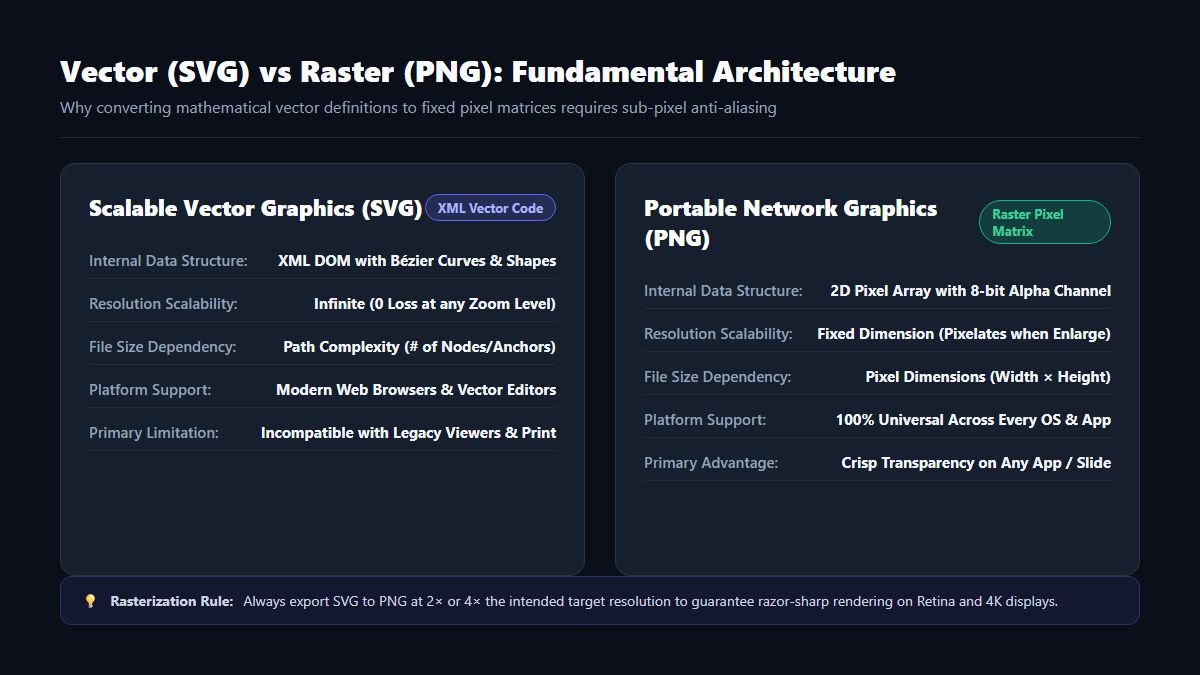
To understand why SVG to PNG conversion requires careful configuration, we must inspect how each file format encodes graphical information:
| Parameter | Scalable Vector Graphics (SVG) | Portable Network Graphics (PNG) |
|---|---|---|
| Data Format | XML markup text defining shapes, paths, lines, and curves | 2D matrix of discrete pixels (RGB or RGBA) |
| Scalability | Infinite: Scales smoothly from 16px to billboard sizes with 0 loss | Fixed: Pixelates or blurs when scaled beyond native pixel dimensions |
| Transparency | Object-level opacity and CSS styling | Native 8-bit Alpha Channel (full variable transparency) |
| File Size Determinant | Path complexity (number of coordinates, anchors, nodes) | Image dimensions (width × height) and color entropy |
| Animation & Scripting | Supports CSS keyframe animations and JavaScript manipulation | Static bitmap (APNG supports animation, but lacks wide adoption) |
| Universal Compatibility | Web browsers, Figma, Illustrator, Inkscape | 100% of all devices, operating systems, email clients, and apps |
Why Convert SVG to PNG? 5 Critical Production Use Cases
While SVGs are ideal for web codebases, real-world distribution demands PNG bitmaps:
1. Social Media OpenGraph and Twitter Cards
Platforms like Twitter/X, LinkedIn, Facebook, and Slack crawlers require raster images (typically 1200×630 pixels in PNG or JPG format) to render link previews. They reject SVG files outright for security and performance reasons.
2. Office Suites and Presentation Decks
While modern versions of Microsoft 365 and Google Slides support basic SVG insertion, older PowerPoint versions, Keynote exports, and PDF print engines frequently misrender complex vector gradients, clipping masks, and SVG drop shadows. Exporting to a 300 DPI transparent PNG eliminates rendering bugs during high-stakes keynote presentations.
3. Native Mobile Application Assets
Both iOS (Xcode Asset Catalogs) and Android (Drawable directories) utilize density-specific PNG raster assets (@1x, @2x, @3x and mdpi, hdpi, xhdpi, xxhdpi) to optimize GPU memory bandwidth on mobile devices.
4. Email Signatures and HTML Newsletter Templates
Email clients like Outlook (Windows desktop) and older Android mail apps have notoriously broken SVG rendering engines. Transparent PNGs ensure corporate email signatures, company logos, and icons display identically across every recipient client.
5. Watermarking and Digital Asset Rights
Embedding vector files makes your brand assets trivially easy to extract and manipulate. Distributing previews or watermarked design drafts as flattened PNGs protects your intellectual property from vector theft.
The 4 Common SVG to PNG Conversion Pitfalls (And How to Fix Them)
Converting vector code into pixels is not always a one-click affair. Here are the most frequent conversion failures and how to prevent them:
Problem 1: Blurry or Pixelated PNG Output
- Cause: The rasterizer used the raw
widthandheightattributes defined in the SVG file (e.g.,32px × 32px), producing a tiny bitmap that looks blurry when viewed on modern high-DPI displays. - Solution: Always set a target export multiplier. When exporting UI icons, rasterize at 4× (
128×128or256×256px). When creating banner assets, calculate the exact viewport width (e.g.,1920pxor3840pxfor 4K).
Problem 2: Missing Text or Distorted Typography
- Cause: The SVG contains
<text>elements that reference external fonts (such as Inter, Roboto, or custom corporate typefaces) that are not installed on the converting machine or cloud container. - Solution: In Figma, Sketch, or Adobe Illustrator, select all text layers and press Outline Text (
Cmd + Shift + OorCtrl + Shift + O). This converts typographic glyphs into immutable vector<path>elements before export.
Problem 3: Accidental Black or White Background Matte
- Cause: Many legacy command-line tools or poorly configured canvas contexts initialize rasterization with a black (
#000000) or white (#ffffff) fill color when no background color is explicitly declared. - Solution: Ensure your conversion tool clears the 2D canvas with
clearRect(0, 0, width, height)and encodes the output with 32-bit RGBA color channels (PNG-24 with Alpha).
Problem 4: Clipped Shapes and Cut-off Drop Shadows
- Cause: SVG filter effects (
<feDropShadow>,<feGaussianBlur>) extend beyond the bounding box declared in theviewBoxattribute. - Solution: Expand the
viewBoxcoordinate bounds by 10% to 20% to account for blur radii and outer strokes prior to rasterization.
Step-by-Step: Converting SVG to PNG in MintSaaS Image Studio
The MintSaaS Media Suite provides an intuitive, high-speed converter built for developers, designers, and business operators:
- Upload Your SVG Files: Drag and drop single vector files or bulk folders into the upload zone.
- Select Output Resolution: Choose from 1× (Standard Web), 2× (Retina Displays), 4× (Ultra HD / Print), or specify custom pixel dimensions.
- Toggle Background Transparency: Keep the background 100% transparent or select a solid matte color (such as white, black, or brand hex).
- Instant Download: Click Convert All. Because processing runs entirely within local web workers, your converted high-resolution PNGs are ready instantly with zero server wait times.
Looking to crop or resize your newly exported PNGs? Follow our complete walkthrough on How to Crop PNG Images Online Losslessly.
Developer Guide: Converting SVG to PNG Programmatically
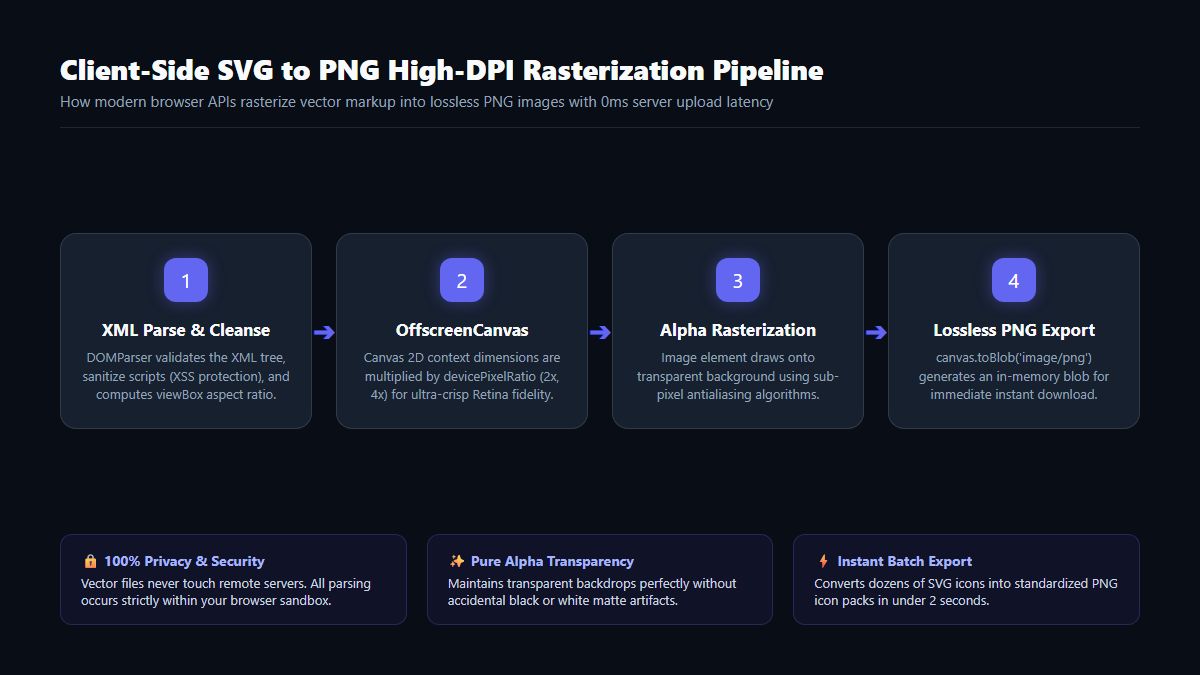
For web developers building automated conversion pipelines, modern web standards allow rasterizing SVGs in under 20 lines of vanilla JavaScript:
async function rasterizeSvgToPng(svgString, scaleFactor = 2) {
  return new Promise((resolve, reject) => {
    // 1. Create an in-memory image from the SVG string
    const blob = new Blob([svgString], { type: 'image/svg+xml;charset=utf-8' });
    const url = URL.createObjectURL(blob);
    const img = new Image();

    img.onload = () => {
      // 2. Setup high-DPI canvas dimensions
      const canvas = document.createElement('canvas');
      canvas.width = img.naturalWidth * scaleFactor;
      canvas.height = img.naturalHeight * scaleFactor;

      const ctx = canvas.getContext('2d');
      // 3. Clear canvas to ensure 100% alpha transparency
      ctx.clearRect(0, 0, canvas.width, canvas.height);
      ctx.imageSmoothingEnabled = true;
      ctx.imageSmoothingQuality = 'high';

      // 4. Draw SVG vector onto raster canvas
      ctx.drawImage(img, 0, 0, canvas.width, canvas.height);
      URL.revokeObjectURL(url);

      // 5. Export lossless PNG Blob
      canvas.toBlob((pngBlob) => {
        resolve(pngBlob);
      }, 'image/png');
    };

    img.onerror = (err) => {
      URL.revokeObjectURL(url);
      reject(err);
    };

    img.src = url;
  });
}
Frequently Asked Questions (FAQ)
Does converting SVG to PNG reduce image quality?
Rasterization inherently fixes vector curves into a finite grid of pixels. However, if you rasterize at the correct resolution (such as 2× or 4× the display dimensions), the human eye will perceive zero loss in sharpness, while gaining 100% software compatibility.
Will my PNG maintain a transparent background?
Yes. The PNG format natively supports an 8-bit alpha channel, providing 256 degrees of opacity per pixel. When converted using MintSaaS Media Tools, transparent areas in your SVG remain completely transparent in the resulting PNG.
Why are my SVGs converted to PNG showing black backgrounds?
This occurs when software renders the image onto a default canvas without clearing the alpha channel, or when the file is saved as a JPEG (which does not support transparency). Always ensure the output container is set to PNG-24 with alpha enabled.
Can I convert multiple SVG files to PNG simultaneously?
Yes. MintSaaS supports bulk multi-file conversion. You can drop an entire directory of SVG icons and receive a packaged zip file containing retina-ready PNG assets in seconds.
Conclusion: Get Crisp, Lossless PNGs in Seconds
Whether you are preparing vector assets for an executive pitch deck, packaging app store icons, or setting up social media share cards, converting SVG to PNG is effortless when using the right rasterization pipeline.
Stop worrying about blurry icons or compromised security: try the MintSaaS Media & Image Studio today, explore our full suite of Creative Tools, and learn how to optimize other media formats in our WebP Conversion Guide.
More from MintSaaS Dispatch
Handcrafted technical insights and developer tools.

Best Windows Tools for Developers & Power Users: The Complete 2026 Productivity Guide

Best CRM Software in 2026: The Complete Guide to Modern Customer Relationship Management for SaaS & Startups
